Reports
Generate a report for any vehicle and date range, or schedule one and have it emailed to you.
See your vehicles live, replay any trip, and get alerts on your phone. The app is included with every subscription from R50 a month. No contract, and no extra app fee.
iPhone · iPad · Android · same login as the web platform
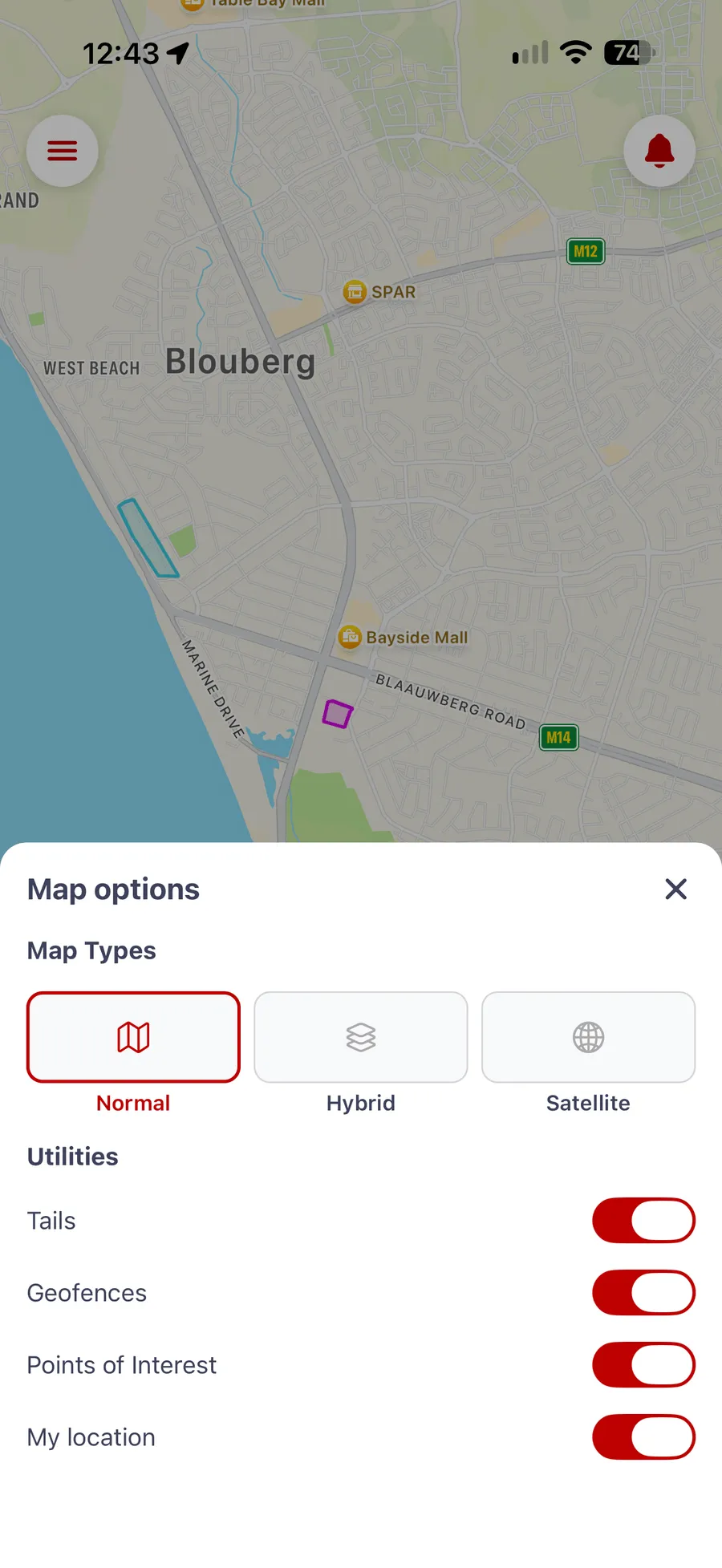
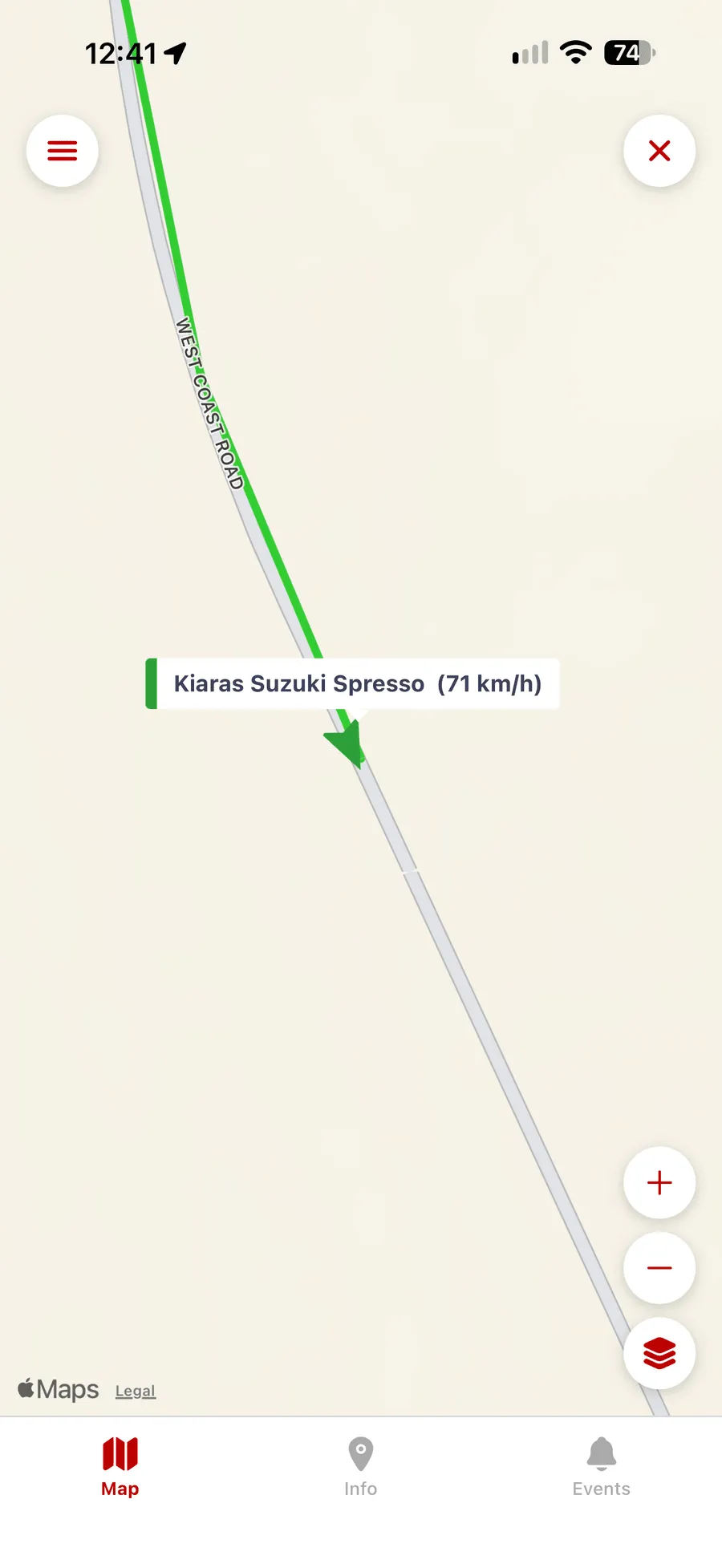
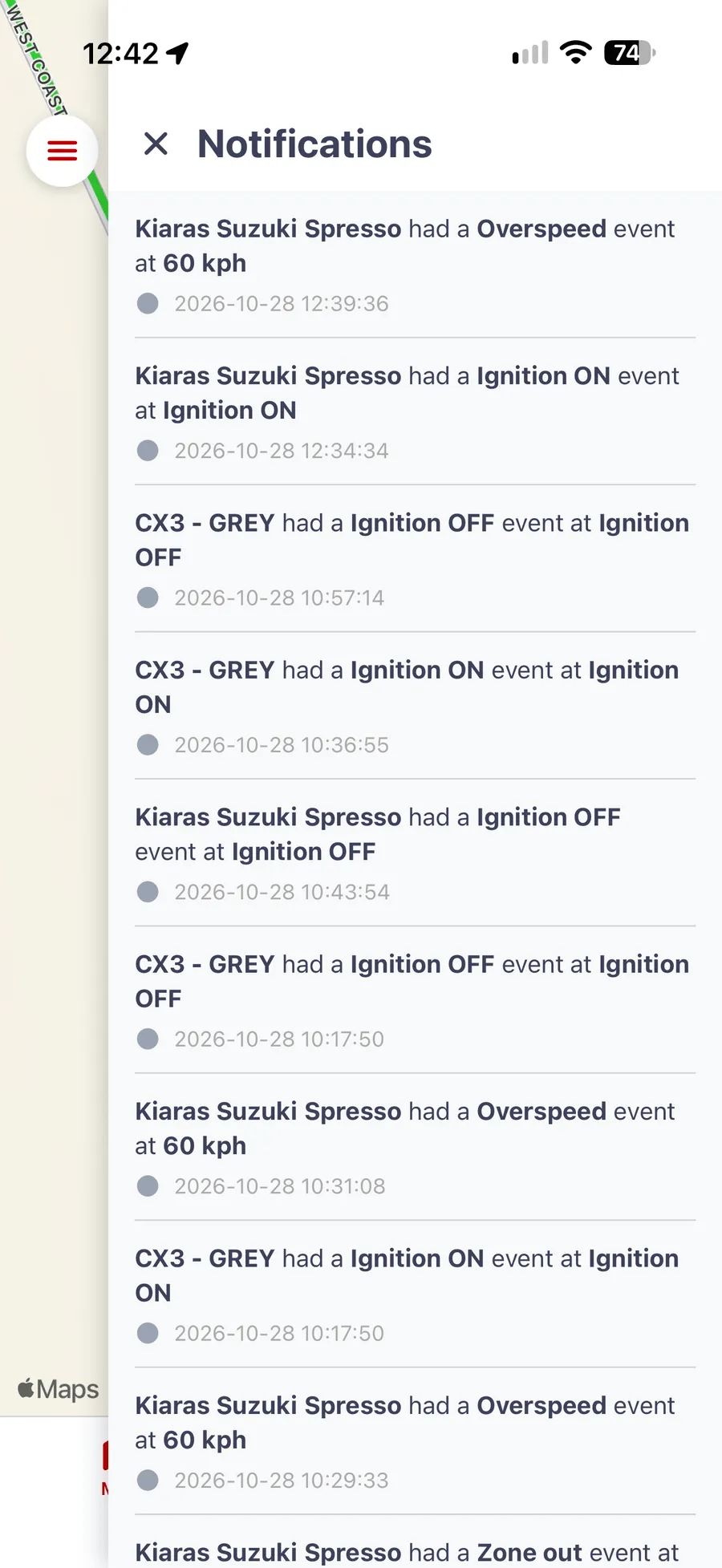
The app itself · tracking a car around Cape Town
The Tracking Co is a Cape Town-based GPS vehicle tracking company founded in 2016. Its vehicle tracking app puts your account on your phone: the live map, trip history, alerts, and reports, with the same email and password you use on the web platform. The app is free to download and included in every subscription. TTC subscriptions start from R50 per month with no contract required, and you own the tracker outright. See how the pricing works.
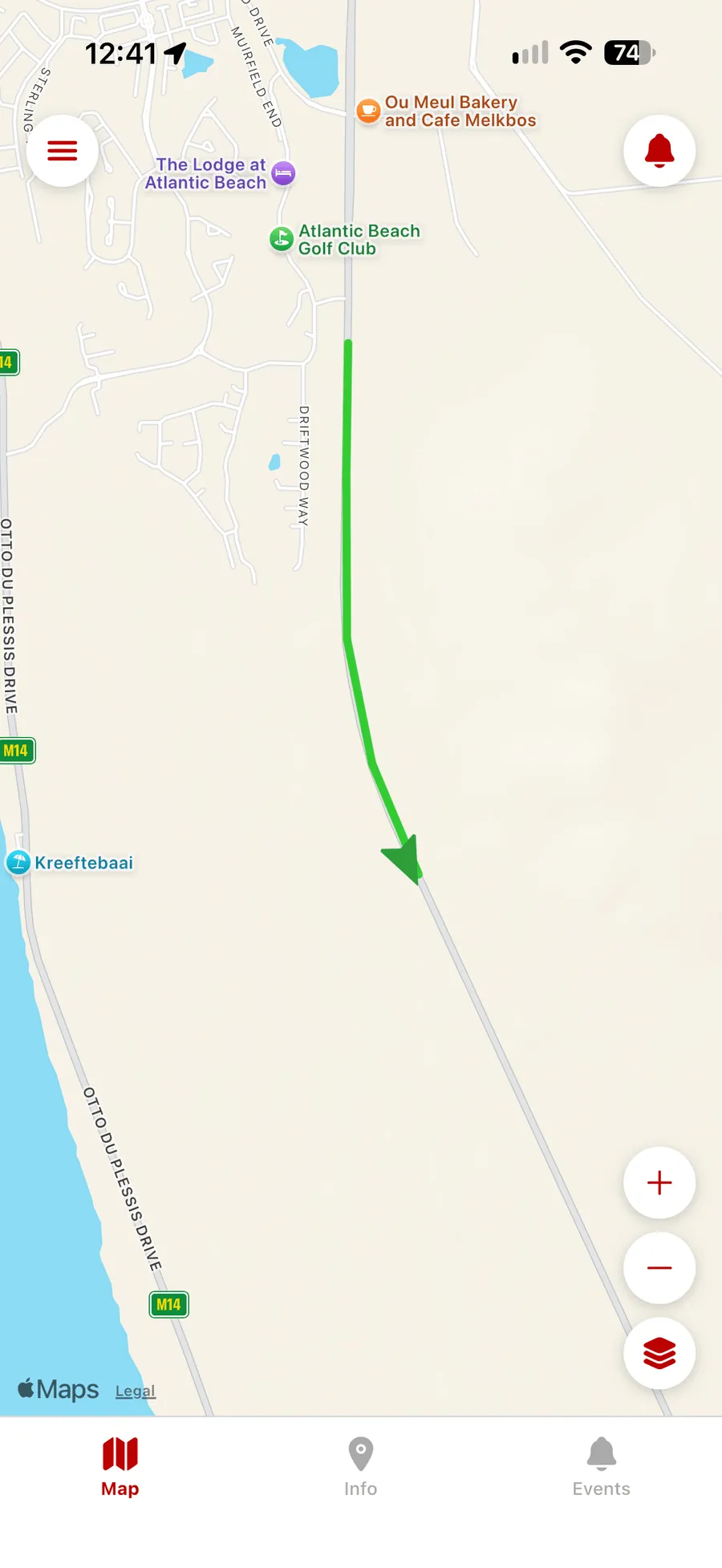
Each arrow on the map is a vehicle, pointing the way it is heading. Green is moving, yellow is stopped, and red is offline. Turn on tails to see the road a vehicle has just driven, and switch to satellite when you need to see the yard and not just the street.
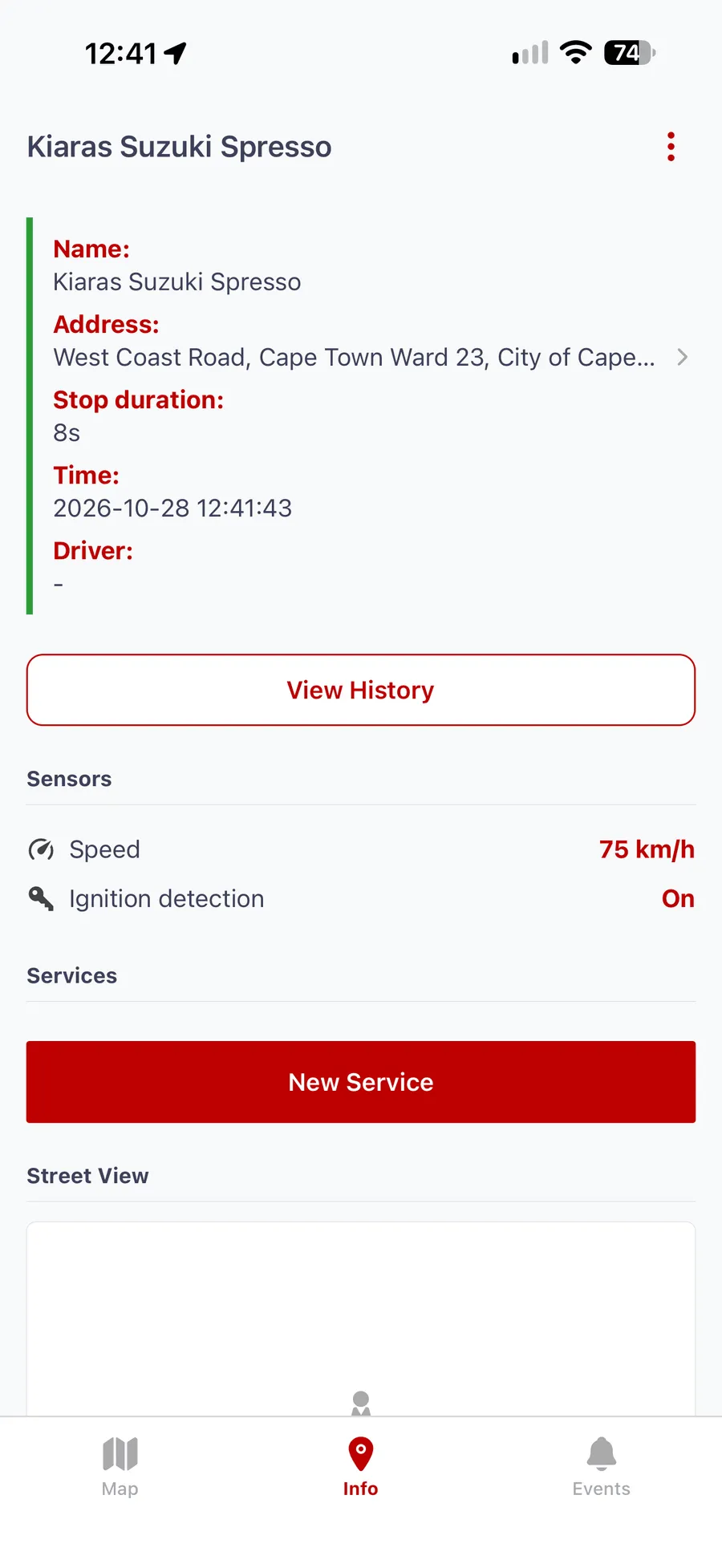
Tap a vehicle, then Info. You get its current address, speed, ignition status, how long it has been stopped, and the driver assigned to it. The Events tab lists what the vehicle has been doing, and View History takes you straight to its trips.
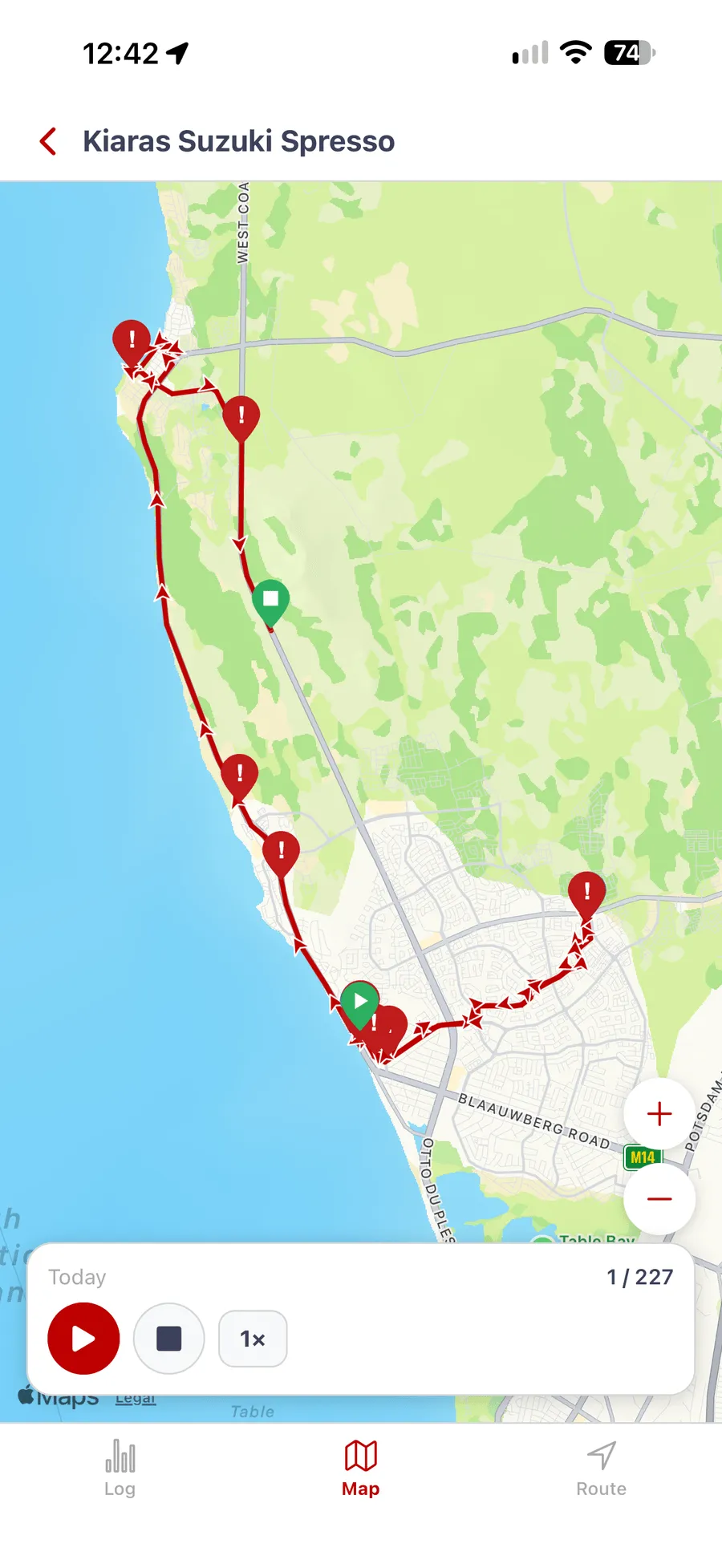
Pick a vehicle and a day, or a range of days. Every drive is drawn on the map, with markers where the vehicle parked and where an alert fired. Press play to replay the route. The Tracking Co stores 90 days of trip history.
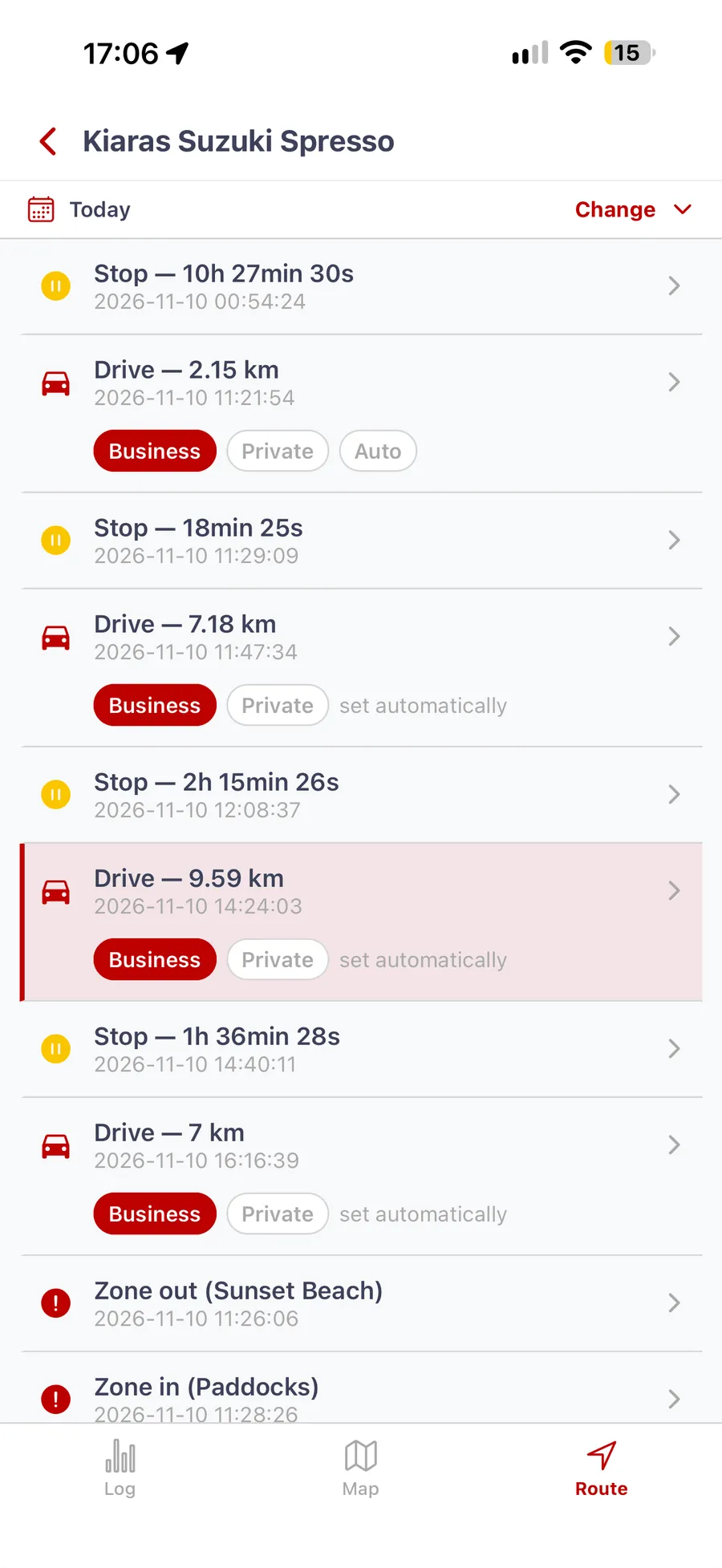
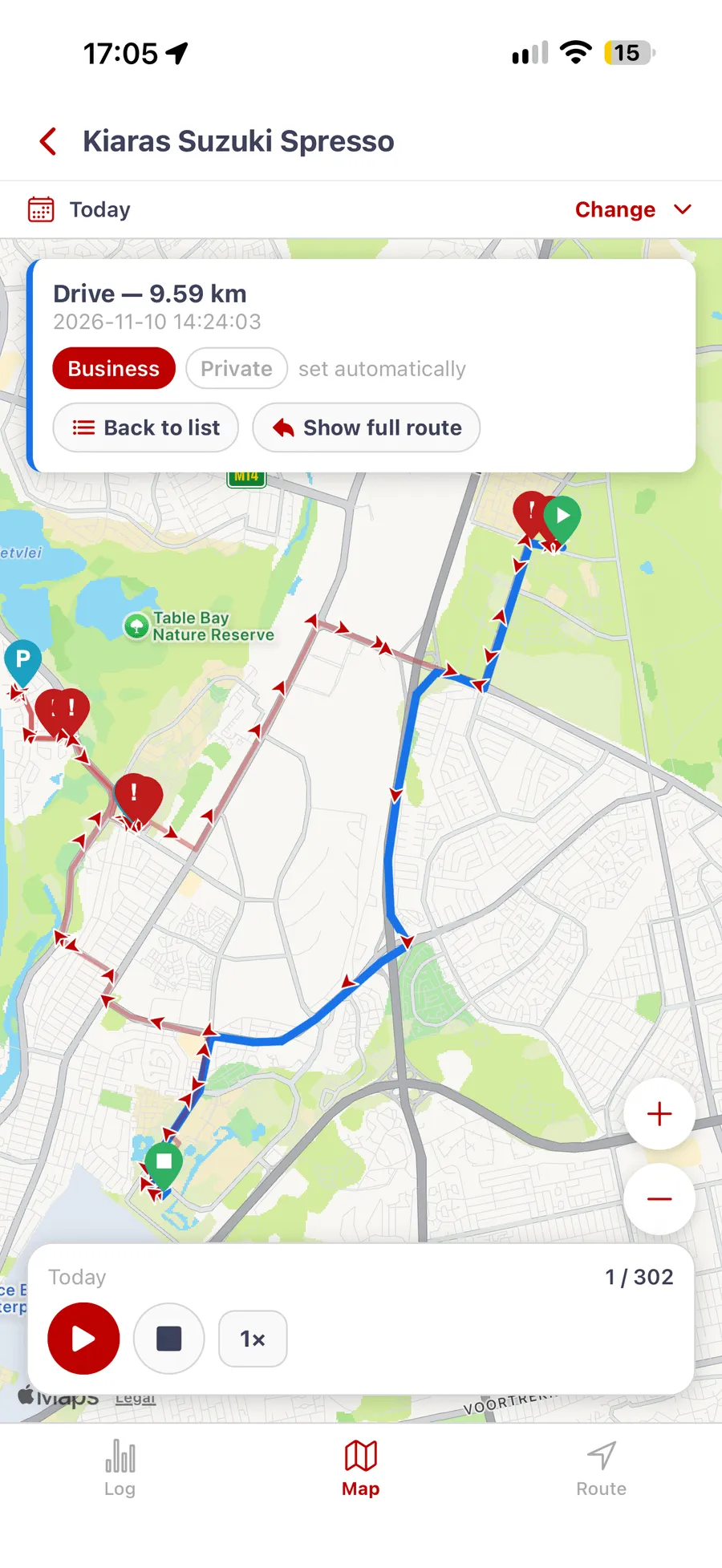
Each account has its own business-hours window that tags trips automatically. Open a vehicle's history and go to Route: every drive has a Business and a Private button, so you can correct a trip with one tap. Tap a drive to see it on the map, where the same buttons sit on its card. If the buttons don't show on your account, WhatsApp us and we'll switch them on.
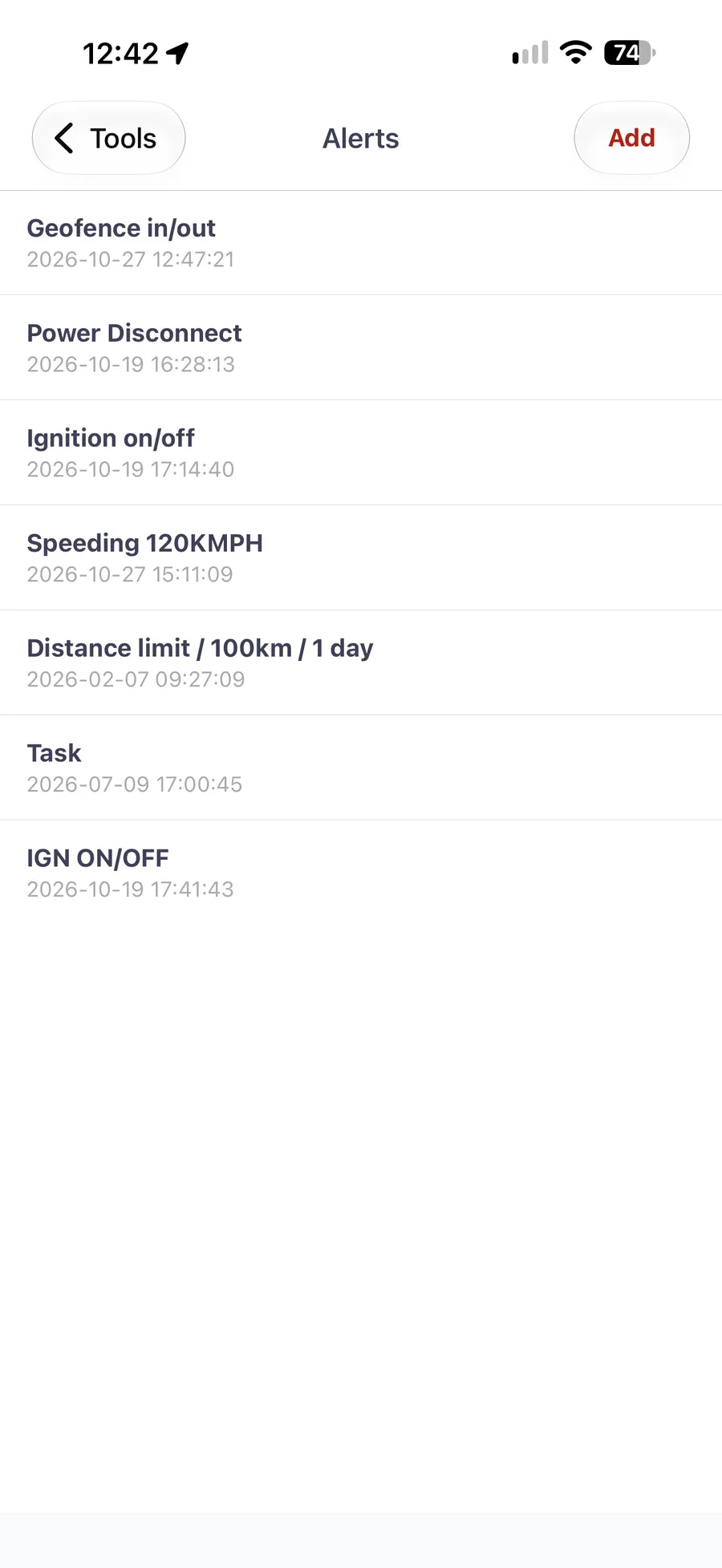
Set up an alert under Tools and it is sent to your phone as a push notification. Tap one to see where it happened on the map. Alerts cover overspeed, ignition on and off, geofence entry and exit, and PowerCut, which means the tracker has lost power from the vehicle battery.
The rest of your account is in the app's menu. What each login sees depends on its permissions, so a driver's or manager's sub-account shows only the vehicles and tools you've allowed.
Generate a report for any vehicle and date range, or schedule one and have it emailed to you.
Add or remove geofences, show them on the live map, and use them in entry and exit alerts.
Mark the places that matter, such as a depot, a customer site, or home, and see them on the map.
Add, edit, or remove drivers. Sort vehicles into groups, and untick any vehicle to hide it from the map.
Send a command to a tracker where your account allows it. The app asks you to confirm before anything is sent.
Set your units and time zone, change your password, and replay the app tour whenever you need it.
No app fee and no feature tiers. Every TTC subscription includes the web platform and the mobile app, from R50 per month, with no contract and no early-termination fees. See exactly what your subscription includes.
Get a quote →Download it, sign in with your platform login, and your vehicles are on the map. There is nothing to set up twice.
Get the app from the App Store or Google Play. It is listed as “The Tracking Company”.
Use the same email and password as the web platform. We create your account when your tracker is activated.
A one-minute tour shows you where everything is the first time you sign in. Replay it any time from Setup.
Not a client yet? Get a quote, or see which tracker you need.
Yes. The Tracking Co app is free to download from the App Store and Google Play, and there is no separate app fee. It is included in every subscription, which starts from R50 per vehicle per month with no contract. You need a Tracking Co account with at least one active tracker to sign in.
The Tracking Co app runs on iPhone, iPad, and Android phones. It is listed as "The Tracking Company" on the App Store and on Google Play. The same account also works in any web browser, so you can move between your phone and a computer.
No. You sign in with the same email and password you use on The Tracking Co web platform. Accounts are created by The Tracking Co when your tracker is activated, so there is no sign-up screen in the app. Staff with their own sub-account logins see only the vehicles and tools they have permission for.
No. Vehicle positions come from the GPS tracker fitted to each vehicle, not from your phone. The Tracking Co app asks for location permission only to show your own position as a blue dot on the map. That position stays on your phone, is never sent to The Tracking Co, and is optional.
The Tracking Co stores 90 days of trip history. In the app you can open today, yesterday, the last 7 or 30 days, or your own date range, and replay the route on the map. For records older than 90 days, export your reports regularly.
Yes. Each Tracking Co account has its own business-hours window that tags trips automatically. In the app, open a vehicle's history and go to Route, where every drive has a Business and a Private button. If the buttons don't show on your account, The Tracking Co switches the feature on for you.
Alerts arrive as push notifications. You set them up in the app under Tools, then Alerts, for events such as overspeed, ignition on and off, geofence entry and exit, and PowerCut. Tapping a notification opens the map where it happened. The Tracking Co includes alerts in every R50 per month subscription.
More questions? Read the full FAQ or contact the team directly.
Get a no-obligation quote. The team replies within one business day — no call centres, no pressure.